Quick answer: use Geo Data Viewer Fast when you need to preview Shapefile, GeoJSON, KML, or PMTiles inside VS Code without switching to QGIS or uploading the file.
View GIS Files Without Leaving VS Code: Meet Geo Data Viewer Fast
If you work with geospatial data, you know the drill: download a Shapefile, switch to QGIS, wait for it to load, inspect the data, switch back to your code editor. That context switch kills momentum—especially when all you needed was a quick look at the geometry or a sanity check on the attributes.
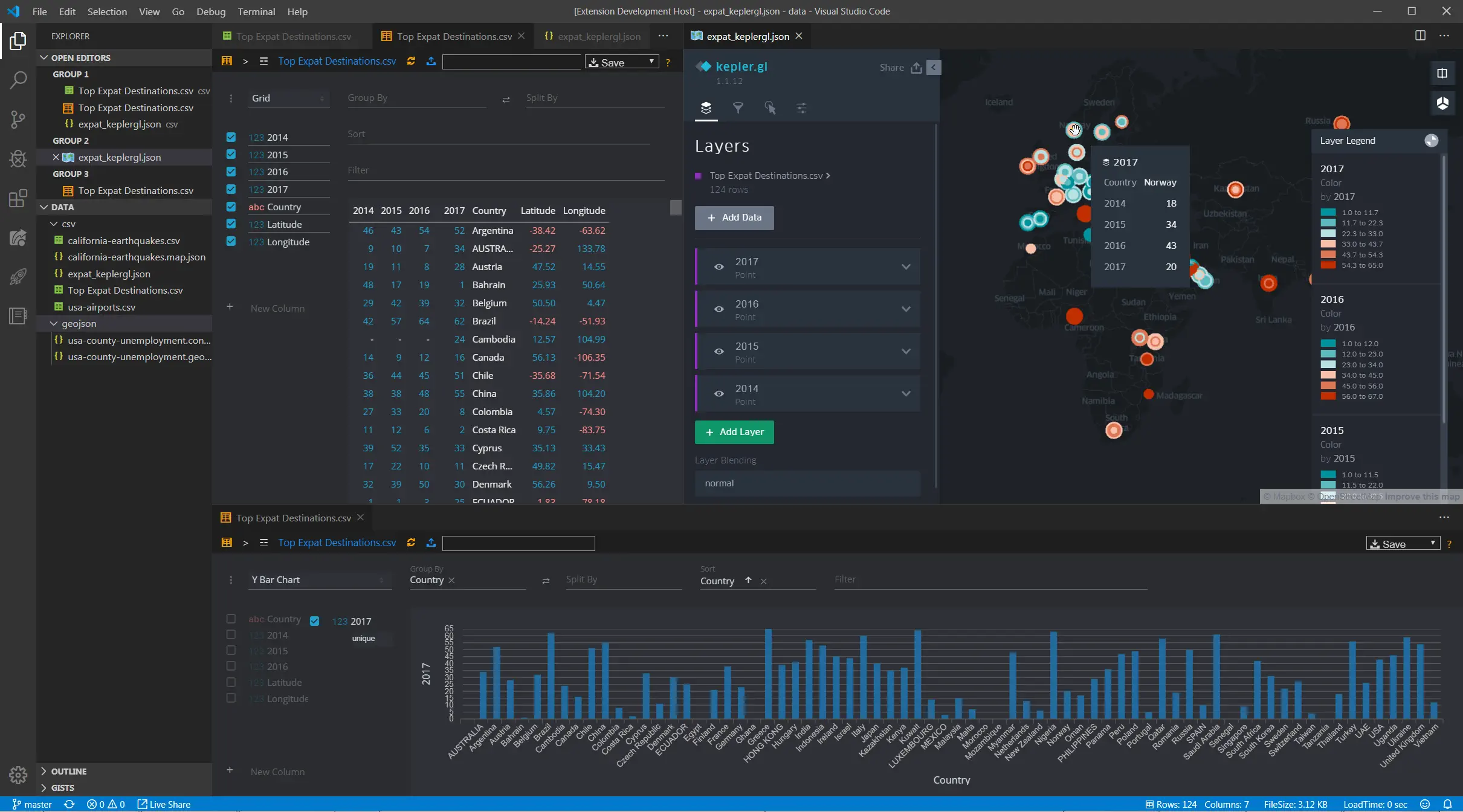
Geo Data Viewer Fast eliminates that round-trip. It opens geospatial files in an interactive Kepler.gl map panel right inside VS Code. No desktop GIS launch, no browser tab, no file upload. Just open the file and see the map.
What It Does
Geo Data Viewer Fast is a VS Code extension that renders local geospatial files in an interactive map webview powered by Kepler.gl. The workflow is deliberately minimal:
- Open a supported file in VS Code
- Run the preview command (or press
Ctrl/Cmd + Alt + M) - The map appears in a side panel
That’s it. No configuration, no server, no upload.
Supported Formats
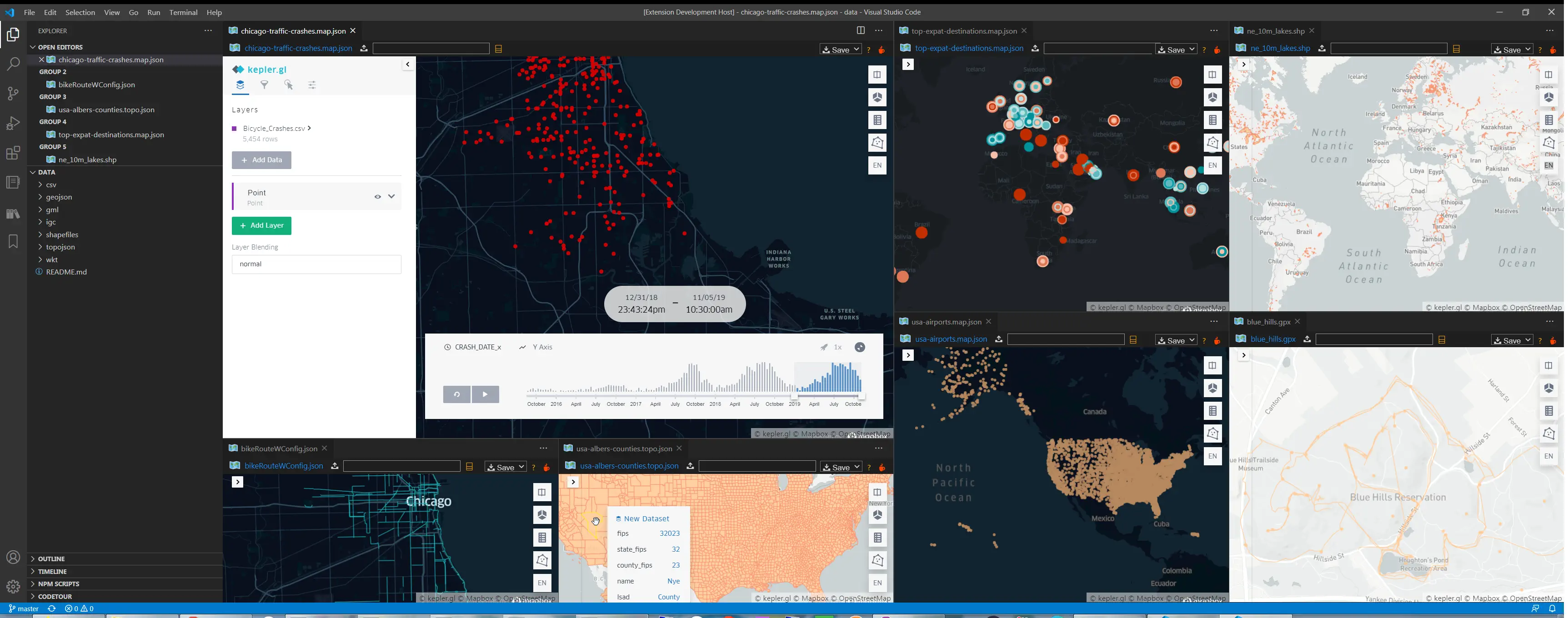
The extension covers the formats GIS developers encounter most often:
| Format | Extensions |
|---|---|
| GeoJSON / JSON | .geojson, .json |
| Kepler.gl configs | .map.json, .kgl.json |
| TopoJSON | .topojson, .topo.json |
| CSV / TSV | .csv, .tsv |
| Excel | .xlsx |
| KML | .kml |
| GPX | .gpx |
| GML | .gml |
| IGC (paragliding logs) | .igc |
| WKT | .wkt |
| Shapefile | .shp, .zip |
| FlatGeobuf | .fgb |
| GeoParquet | .parquet, .geoparquet, .gpq |
| PMTiles | .pmtiles |
That’s 15 format families—enough to cover the vast majority of vector geospatial data you’ll encounter in development, ETL pipelines, or data science workflows.
Key Features
Kepler.gl Rendering
The extension uses Uber’s Kepler.gl as its rendering engine, which means you get the same high-quality visualization layers available in the standalone Kepler.gl app: point maps, arcs, hexbin heatmaps, 3D building extrusions, and timeline animations. The difference is that it all happens inside VS Code.
Adapter-Based Parser Pipeline
Each format has its own dedicated parser adapter. This architecture makes the extension easier to maintain and extend—adding a new format means writing one adapter, not refactoring a monolithic loader. The adapter chain also enables format-specific optimizations (e.g., streaming FlatGeobuf bounds instead of loading the entire file).
PMTiles Vector Preview
PMTiles is increasingly popular for cloud-native vector tile hosting. Geo Data Viewer Fast supports PMTiles files directly, with native Kepler.gl hover/click interaction on vector tile features. This is useful for inspecting tilesets locally before deploying them to production.
Built-In Map Gallery
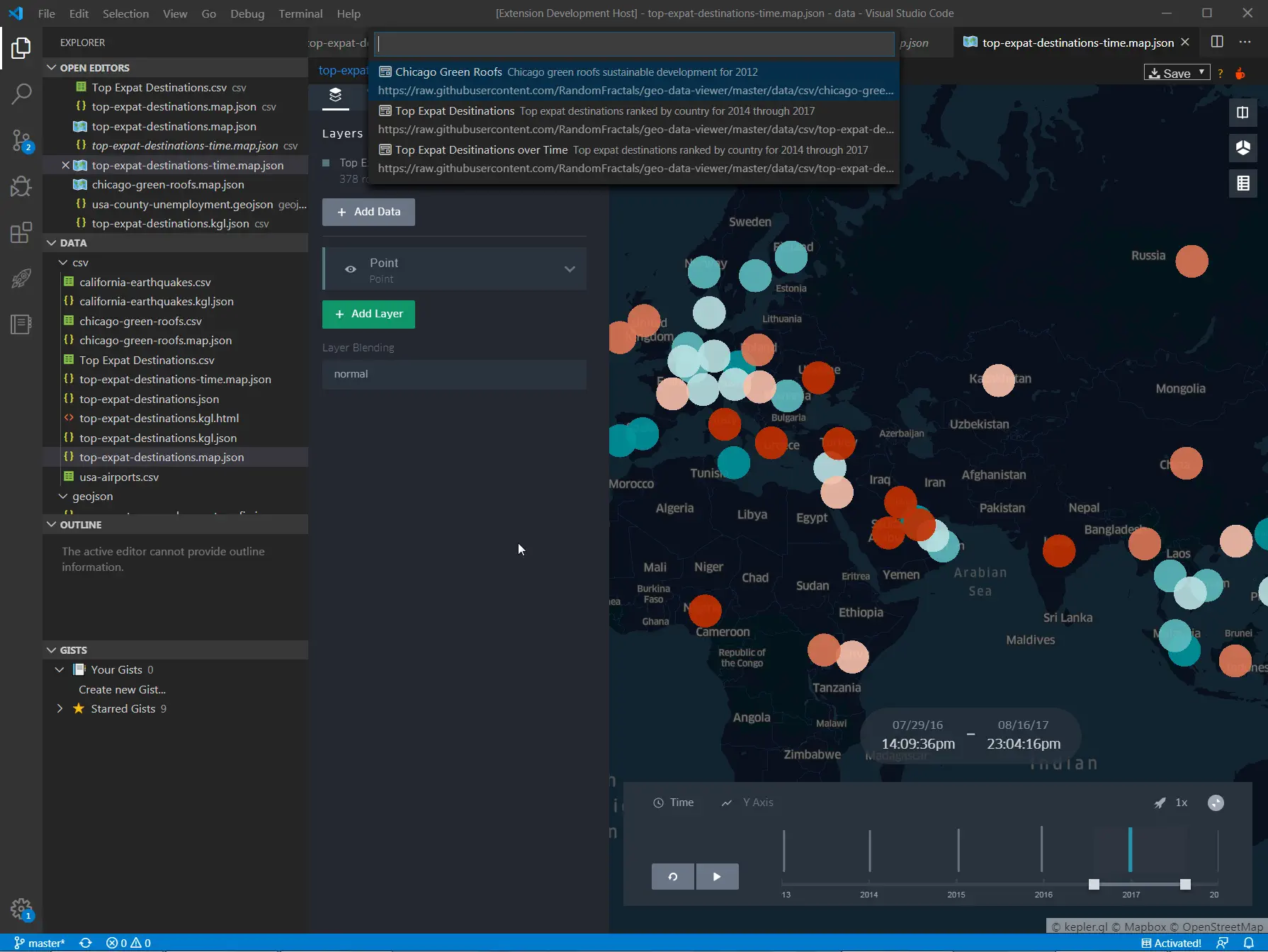
The extension ships with a curated gallery of sample datasets and Kepler.gl configs—Chicago bike routes, USA airports, world cities, major rivers, and more. It’s a quick way to test the extension or explore what Kepler.gl can do without hunting for sample data.
Run Geo Data Viewer: Map Gallery or press Ctrl/Cmd + Alt + G.
Large-File Safeguards
Previewing a 500,000-row CSV inside a VS Code webview is a recipe for a frozen editor. The extension implements a configurable row limit (geoDataViewer.largeFilePreviewLimit, default 5,000) that loads a representative sample instead of blocking the UI. You can adjust or disable the limit in your settings.
Parse Cache
The in-memory parse cache avoids re-parsing unchanged files on repeat previews. It’s on by default and includes a diagnostic mode (geoDataViewer.showCacheDiagnostics) so you can verify cache hit/miss behavior.
Remote URL Support
Beyond local files, you can open geospatial data from HTTP/HTTPS URLs via Geo Data Viewer: Open from URL or Path (Ctrl/Cmd + Alt + U). The file is cached locally and then previewed—no persistent server dependency.
How It Fits Into Your Workflow
The “Quick Inspection” Loop
The most common use case is the one that previously required a full context switch:
You receive a Shapefile from a colleague.
→ Open the .shp in VS Code
→ Ctrl/Cmd + Alt + M
→ Inspect geometry and attributes in the map panel
→ Close the panel, continue coding
Total time: under 10 seconds. No QGIS, no ArcGIS, no browser tab.
Data Pipeline Development
If you’re building ETL pipelines that transform geospatial data, the extension gives you an instant visual check at each stage of the pipeline. Write a transformation script, save the output, preview it in VS Code, iterate. The parse cache speeds up the loop when you’re only changing downstream logic.
Tileset Validation
Working with PMTiles or FlatGeobuf? Preview the tiles directly in VS Code before pushing them to a CDN or tile server. The Kepler.gl interaction model (hover tooltips, click-to-inspect) works on PMTiles vector features just like it does on GeoJSON.
When to Use the Extension vs. GeoDataViewer.com
Geo Data Viewer Fast and GeoDataViewer are complementary tools in the same ecosystem. Here’s how to decide:
| Need | Use |
|---|---|
| Quick preview of a local file while coding | VS Code extension |
| Format conversion (Shapefile → GeoJSON, KML → GeoPackage, etc.) | GeoDataViewer.com |
| Inspecting 20+ formats including FIT, DXF, XLSX | GeoDataViewer.com |
| Kepler.gl config preview and iteration | VS Code extension |
| PMTiles local preview | VS Code extension |
| Attribute table, field statistics, feature details | GeoDataViewer.com |
| Distance/area measurement, elevation lookup | GeoDataViewer.com |
| No install, browser-only access | GeoDataViewer.com |
| Integrated into your dev environment | VS Code extension |
The rule of thumb: if you’re already in VS Code, stay in VS Code. If you need deeper inspection, format conversion, or you’re not at your development machine, use the browser.
Installation
Install directly from the VS Code Marketplace:
- Open VS Code
- Press
Ctrl/Cmd + Shift + Xto open the Extensions panel - Search for “Geo Data Viewer Fast”
- Click Install
Or install from the command line:
code --install-extension Ayamap.geo-data-viewer-fastOr browse the marketplace listing directly.
Configuration
| Setting | Type | Default | Description |
|---|---|---|---|
geoDataViewer.mapStyle | string | positron | Basemap style (positron or darkmatter) |
geoDataViewer.largeFilePreviewLimit | number | 5000 | Max rows/features loaded in preview mode |
geoDataViewer.enableParseCache | boolean | true | In-memory parse caching |
geoDataViewer.showCacheDiagnostics | boolean | true | Show cache hit/miss diagnostics |
geoDataViewer.enablePerformanceLog | boolean | false | Emit parse timing to output channel |
geoDataViewer.mapboxToken | string | "" | Optional Mapbox token for Kepler.gl |
Commands
| Command | Shortcut | Description |
|---|---|---|
Geo Data Viewer: Open Current File | Ctrl/Cmd + Alt + M | Preview the active file |
Geo Data Viewer: Map Gallery | Ctrl/Cmd + Alt + G | Open sample dataset gallery |
Geo Data Viewer: Open from URL or Path | Ctrl/Cmd + Alt + U | Load from URL or local path |
Geo Data Viewer: Reload Map | — | Refresh current preview |
Architecture Notes
The extension is built around a few clean layers:
- Extension host (
src/extension/): VS Code commands, gallery wiring, panel lifecycle - Data layer (
src/data/): Adapter-based format parsers, one adapter per format - Webview (
src/webview/): HTML shell, message bridge, panel state persistence - Runtime assets (
media/): Kepler.gl runtime and webview-side loaders
This separation makes the extension straightforward to extend. If you need to add support for a new format, you write a parser adapter—no changes required in the webview or extension host layers.
What’s Next
The extension is actively maintained and evolving. Areas of ongoing development include:
- Additional format adapters based on community demand
- Tighter integration with GeoDataViewer’s format conversion engine
- Enhanced Kepler.gl layer configuration within the webview
- Performance tuning for very large datasets
If there’s a format or feature you’d like to see, open an issue or leave feedback on the marketplace listing.
TL;DR
- What: A VS Code extension that previews 15+ geospatial file formats in an interactive Kepler.gl map panel
- Why: Stop switching to QGIS or a browser just to inspect a Shapefile
- How:
code --install-extension Ayamap.geo-data-viewer-fast - Shortcut:
Ctrl/Cmd + Alt + Mto open,Ctrl/Cmd + Alt + Gfor the gallery - More formats & conversion: geodataviewer.com for browser-based viewing and 19-format inter-conversion